Restart the Sage 50 Accounts Connector
How to enable and use the restart button on a Sage 50 Accounts Connector.
In some circumstances, your users might want to restart their Sage 50 Accounts Connector. For example, they might have syncsSync The process of fetching the latest data from a connected data source. Syncs can be triggered manually or run automatically on a schedule. in progress that were interrupted by a technical issue.
The Restart connector linkLink The authorization flow that allows end users to connect their accounting, banking, or commerce platforms to your application via Codat. in the connector UI is disabled by default. Codat Support can enable the linkLink The authorization flow that allows end users to connect their accounting, banking, or commerce platforms to your application via Codat. to allow your users to restart the connector, if needed.
If restarted, the connector automatically:
- Cancels data syncsSync The process of fetching the latest data from a connected data source. Syncs can be triggered manually or run automatically on a schedule. in progress for all the companies managed using the connector.
- Shuts down the connector.
- Restarts the connector.
Enable the restart connector linkLink The authorization flow that allows end users to connect their accounting, banking, or commerce platforms to your application via Codat.
Codat's Support team needs to enable the Restart connector linkLink The authorization flow that allows end users to connect their accounting, banking, or commerce platforms to your application via Codat. for your user. To do so, they'll need the ID of the user's connector.
To obtain the connector ID from your user, please ask them to:
- Open their Sage 50 Accounts Connector.
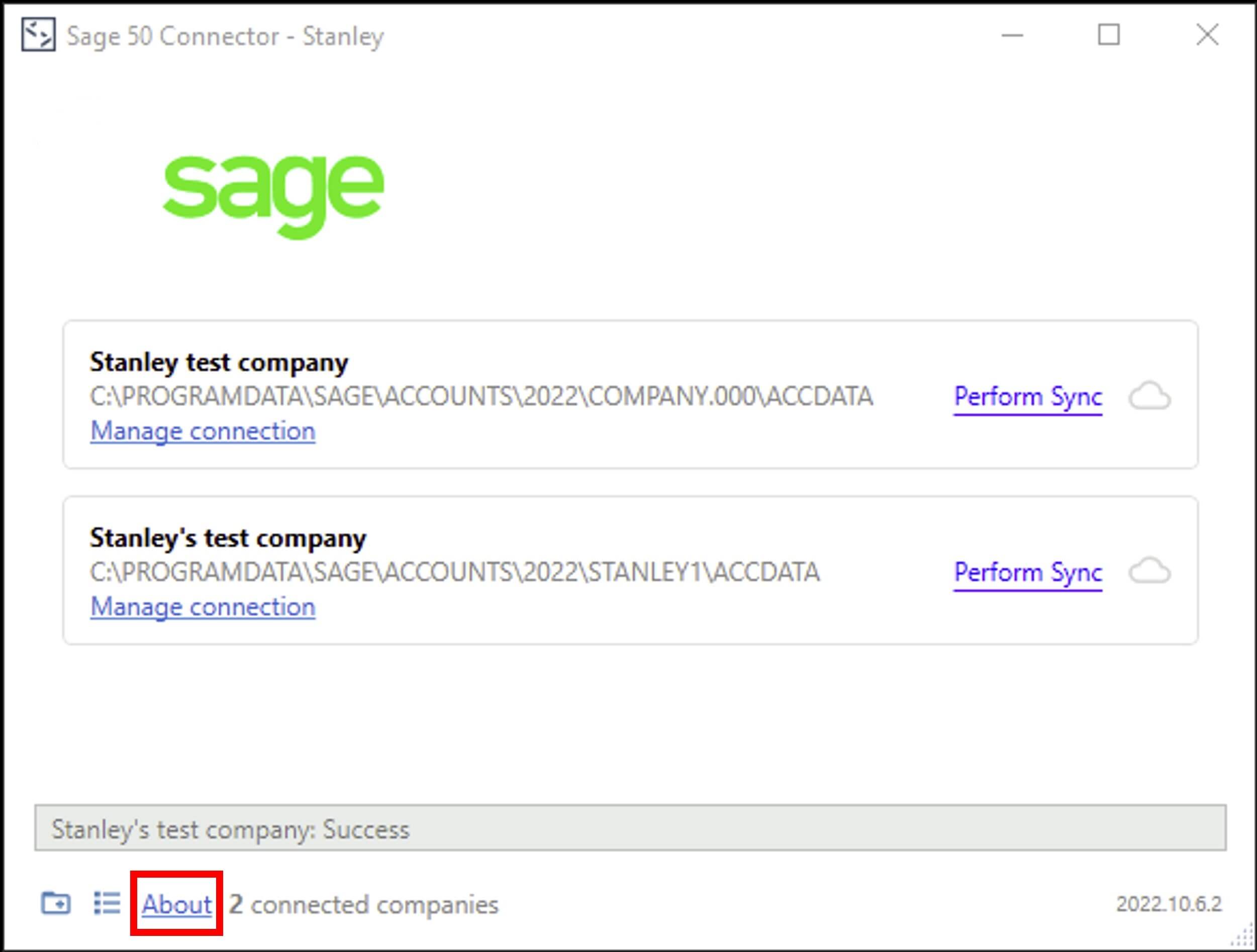
- Select the About linkLink The authorization flow that allows end users to connect their accounting, banking, or commerce platforms to your application via Codat. at the bottom of the connector window.
- Select the Copy icon next to the Connector Id.

- Paste their connector ID into a document or email and send it to you.
You can then send the connector ID to the Codat Support team by raising a ticket through the support request form. They will confirm when the Restart connector linkLink The authorization flow that allows end users to connect their accounting, banking, or commerce platforms to your application via Codat. has been enabled.
Use the restart connector linkLink The authorization flow that allows end users to connect their accounting, banking, or commerce platforms to your application via Codat.
Instructions for customers to find and use the Restart connector linkLink The authorization flow that allows end users to connect their accounting, banking, or commerce platforms to your application via Codat..
- Open the Sage 50 Accounts Connector.
- Select About.
- Select Restart connector.
