Customize Link settings in the Portal
Settings available to you to tailor Link to your authorization journey's needs
Overview
Our LinkLink The authorization flow that allows end users to connect their accounting, banking, or commerce platforms to your application via Codat. settings allow you to configure the authorization process based on your data needs and white-label LinkLink The authorization flow that allows end users to connect their accounting, banking, or commerce platforms to your application via Codat. to suit your brand. You can customize these settings in the Codat Portal in Settings > Auth flow > Link.
Data connectionsConnection A link between a Codat company and a data source (like an accounting platform). Each connection represents authorized access to pull or push data from that platform.
Sandbox integrations
Allow sandbox and test integrations to appear in the linkLink The authorization flow that allows end users to connect their accounting, banking, or commerce platforms to your application via Codat. flow.
Some integrations split their production and sandbox data into separate environments, each with its own unique credentials, e.g. QuickBooks Online. Enabling this feature would show both QuickBooks Online and QuickBooks Online Sandbox in the linkLink The authorization flow that allows end users to connect their accounting, banking, or commerce platforms to your application via Codat. flow. This would also include Codat Sandbox integrations.
Sandbox integrations appear in the auth flow by default. You can override this behavior by appending the link.showSandboxIntegrations query parameter to the LinkLink The authorization flow that allows end users to connect their accounting, banking, or commerce platforms to your application via Codat. URL with a value of true or false.
Integration categories
Select which types of integrations (accounting, banking, or commerce) you'd like customers to connect. You can make each integration type optional if you want your customers to be able to skip sharing it.
Before enabling these, you need to set up one or more integrations for each integration type. Otherwise, the LinkLink The authorization flow that allows end users to connect their accounting, banking, or commerce platforms to your application via Codat. UI will display a blank 'Select your platform' page when companies attempt to linkLink The authorization flow that allows end users to connect their accounting, banking, or commerce platforms to your application via Codat. their accounting, banking, or commerce data.
For the Business documents integration type, you need to enable it in Settings > Integrations > Other integrations. You can also let your users know what files they should upload for each integration category by providing a description under File upload.
You should only enable one of the banking integrations at a time. This ensures optimal use of LinkLink The authorization flow that allows end users to connect their accounting, banking, or commerce platforms to your application via Codat., as each banking integration is represented differently in the auth flow and may confuse the customer.
In your customer's organization, the person signing up through Codat may not have their credentials to hand. For example, it may be their accountant who actually logs into their accounting software.
To enable them to proceed and explore your product, make upfront authorization for different integration categories optional. Later, remind them to authorize or give them an option to share a LinkLink The authorization flow that allows end users to connect their accounting, banking, or commerce platforms to your application via Codat. URL or even a mailto: linkLink The authorization flow that allows end users to connect their accounting, banking, or commerce platforms to your application via Codat..
Onboarding
Multi-entity support
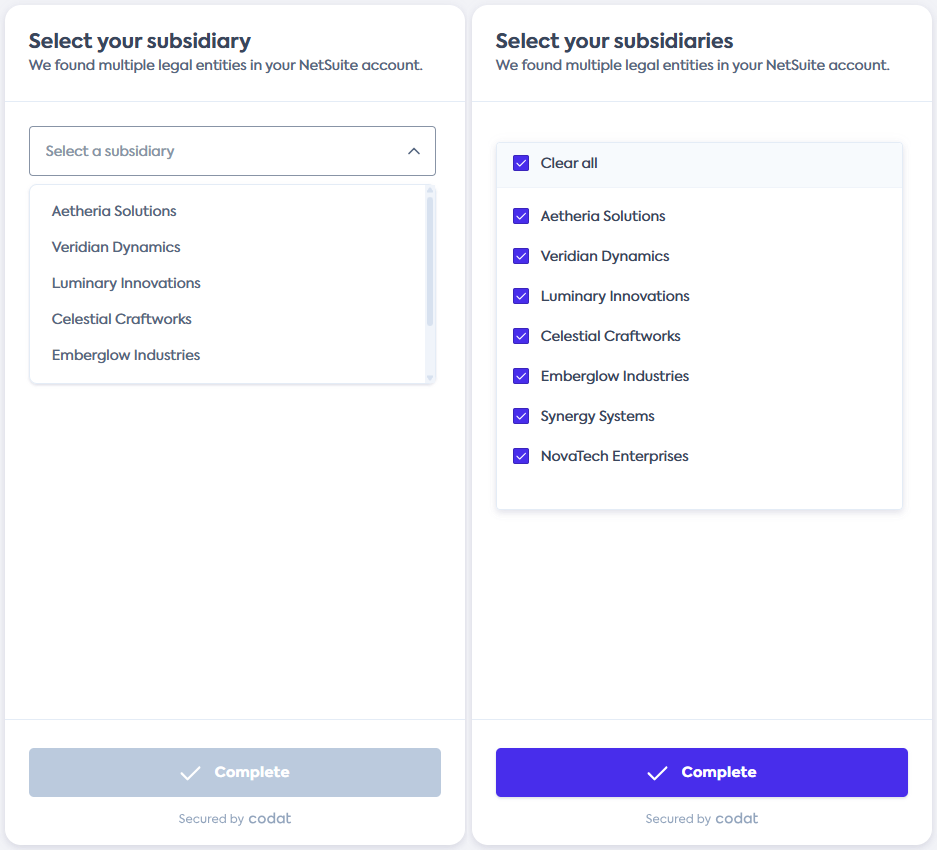
Use this setting to let your customers authorize access to multiple companies within a single accounting software in the same connectionConnection A link between a Codat company and a data source (like an accounting platform). Each connection represents authorized access to pull or push data from that platform. flow. Enabling this will display an additional subsidiary selection step in the flow.
This setting is only relevant for integrations that allow their users to operate several subsidiaries within the same account. The screenshot below demonstrates the difference in the connectionConnection A link between a Codat company and a data source (like an accounting platform). Each connection represents authorized access to pull or push data from that platform. flow for multi-entity integrations with the setting toggled off (left) and on (right).
Mobile support warning
Let your users know that some integrations are not optimized or will not connect via mobile when accessing the connectionConnection A link between a Codat company and a data source (like an accounting platform). Each connection represents authorized access to pull or push data from that platform. journey on mobile.
Secured by Codat
Toggle whether the Secured by Codat logo is shown on your authorization flow.
Restart journey
Allow your customers to restart the linking process for accounting software in case their first connectionConnection A link between a Codat company and a data source (like an accounting platform). Each connection represents authorized access to pull or push data from that platform. attempt fails. Enabling this setting will add a "Try again" button to the connectionConnection A link between a Codat company and a data source (like an accounting platform). Each connection represents authorized access to pull or push data from that platform. error page.
It's possible to restart the linking process for commerce and banking platforms by default and no additional settings are required.
Landing page
If enabled, an extra page will appear at the start of LinkLink The authorization flow that allows end users to connect their accounting, banking, or commerce platforms to your application via Codat.. The page's content is customizable, which is an excellent opportunity to explain the value of linking. You can customize the header and the body of the message.
CompanyCompany In Codat, a company represents your customer's business entity. Companies can have multiple connections to different data sources. logo
Enable this setting to have the companyCompany In Codat, a company represents your customer's business entity. Companies can have multiple connections to different data sources. logo set in Branding settings displayed on the landing page of the LinkLink The authorization flow that allows end users to connect their accounting, banking, or commerce platforms to your application via Codat. flow. You must also have the Landing page setting enabled for this setting to take effect.
Left panel
Specify the messaging that appears on the left panel throughout the LinkLink The authorization flow that allows end users to connect their accounting, banking, or commerce platforms to your application via Codat. flow. This is an opportunity to clarify what the user is about to do. You can customize the header and the body of the message.
Data access consent
This is a mandatory field where you need to specify the message you want to display to companies when sharing data with you.
Optionally, you can add a message and a URL for terms and conditions you'd like your clients to read before they share their data with you.
Data type information
List the data you're going to collect for each of the integration categories (accounting, banking, or commerce). This informs the user which data types Codat will use after linking the data sourceData source An external platform (such as QuickBooks, Xero, or a bank) that Codat integrates with to pull or push financial data..
If you enabled Plaid as your banking integration, the information from this section will not be shown in LinkLink The authorization flow that allows end users to connect their accounting, banking, or commerce platforms to your application via Codat.. This is because Plaid provides their own list of data types within their auth flow.
Exit confirmation dialog
Customize the message your customers see if they cancel before completing the linking process.
Invite companyCompany In Codat, a company represents your customer's business entity. Companies can have multiple connections to different data sources. page
Once you provide your customers with a LinkLink The authorization flow that allows end users to connect their accounting, banking, or commerce platforms to your application via Codat. URL, they reach a page where they provide their companyCompany In Codat, a company represents your customer's business entity. Companies can have multiple connections to different data sources. name and start the linking process. You can customize the header and the body of the message on that page.
Client information
Help and support
Customize your help and support messages that are displayed throughout the LinkLink The authorization flow that allows end users to connect their accounting, banking, or commerce platforms to your application via Codat. flow.
Data security
Provide a linkLink The authorization flow that allows end users to connect their accounting, banking, or commerce platforms to your application via Codat. to your data security policy.
Terms and conditions content
Specify the message you'd like to display to companies if you have specific terms and conditions you'd like them to view before linking.